

If you’re interested in creating visual art from simple words, NeuralBlender is one of the tools you’ll want to explore. In this complete guide, we explain everything about NeuralBlender in clear language what it does, how it works, why people use it, its key features, real-life applications, pros and cons, and tips to get great results. Whether you’re a content creator, designer, hobbyist, or just curious about AI image generation, this guide has you covered.
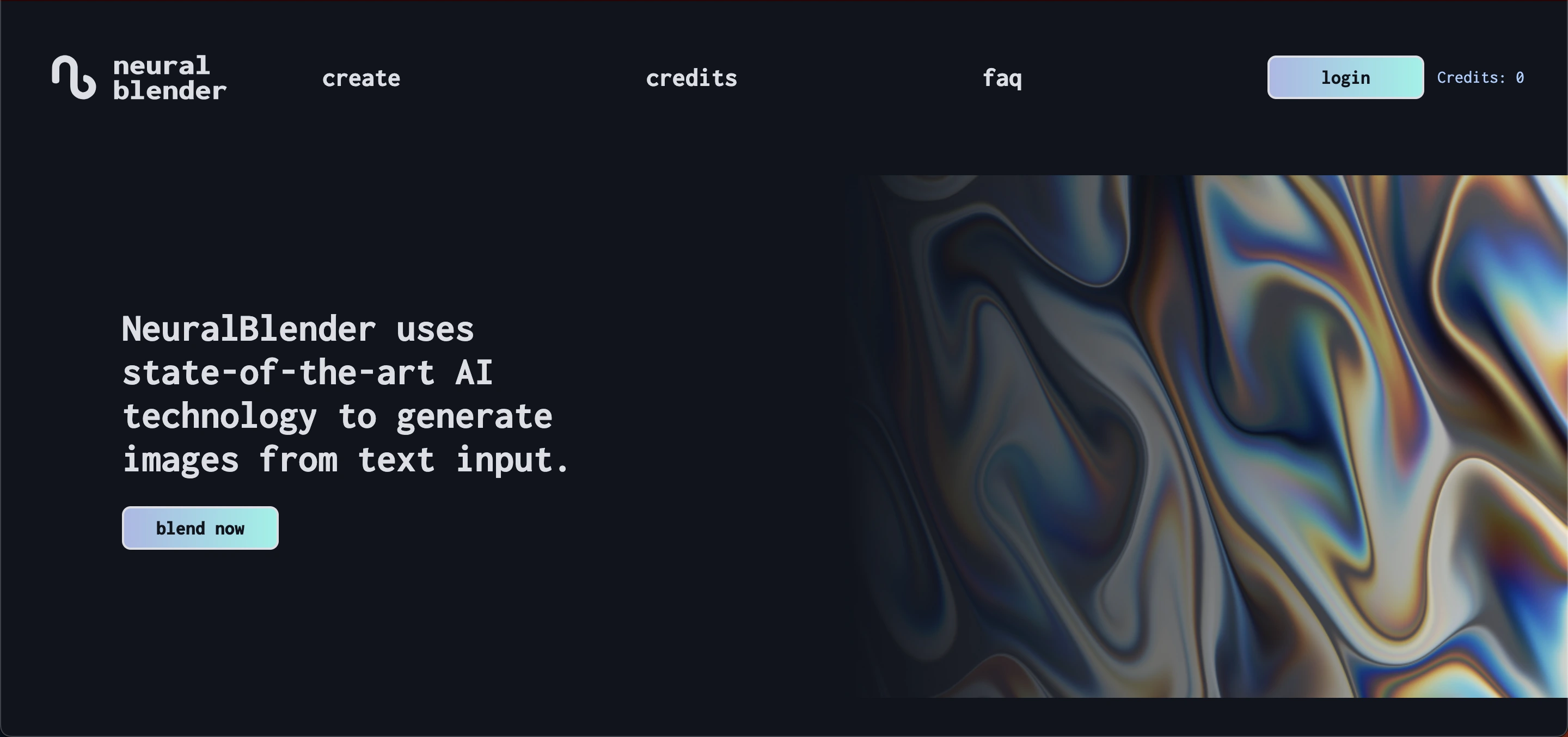 It is an AI-powered image generator that converts written prompts into visuals. Users type what they imagine, and the platform delivers images based on that description. It’s a unique way to create AI art without needing drawing skills or complex software.
In the sections that follow, we’ll break down each part of NeuralBlender so you understand how it can help you create images quickly, easily, and with creative freedom.
How It Works
At its core, NeuralBlender uses artificial intelligence to interpret text prompts and generate images. The tool relies on neural network models that understand language and visuals. When you write a description like “a fox in a meadow at sunrise” It uses that description as a guide to generate a visual representation.
Here’s a simple breakdown of how it works:
Text Input: You write a sentence that describes what you want to see.
AI Interpretation: The AI analyzes your words and predicts visual concepts linked to them.
Image Generation: Based on this prediction, the system creates an image that matches your prompt.
Output: After a short wait, you receive one or more images that represent your description.
This process lets anyone from complete beginners to experienced creator generate customized AI visuals without artistic training.
Key Features
One of the reasons NeuralBlender is popular is because of its simple interface and flexible options. Below, we list the most important features that users love.
1. Text-to-Image Creation
NeuralBlender’s core feature is turning written text into images. You just enter a description, and the tool generates a picture that matches your words. This makes it easy to create visuals even if you don’t know how to draw.
2. Multiple Blend Options
NeuralBlender offers different “blend” modes (like Hyperion and Cronos), each giving a unique style or outcome. These modes let you experiment with artistic variation from more realistic outputs to more creative or abstract looks.
3. Custom Resolutions and Sizes
You can choose basic settings for image size and resolution. Some settings allow higher quality visuals, while others keep things quick and simple. This flexibility helps you balance detail and speed.
4. Upscaling for Detail
Even simple outputs can be enhanced using NeuralBlender’s upscaling feature, which adds finer visual details to images without changing their composition.
5. Community Art and Inspiration
NeuralBlender also features artwork from other users. This gallery lets you see what others have created, offering inspiration for your own prompts and ideas.
6. Easy-to-Use Interface
One of NeuralBlender’s biggest strengths is its user-friendly interface. There’s no complicated setup or learning curve just type, generate, and download.
7. Flexible Credit System
To generate complex or higher quality images, NeuralBlender uses a credits system. Free options are available, and paid credits let you unlock more powerful settings or features.
Read Also: Wondershare VirtuLook: 5 Best AI Alternatives
Use Cases
1. Social Media Content
If you want eye-catching visuals for posts on Instagram, Twitter, or Pinterest, NeuralBlender helps you create unique and interesting images quickly. These visuals can make your content more engaging and shareable.
2. Blog and Website Visuals
A blog post with great visuals keeps people reading longer. Writers use NeuralBlender to create custom images that support their articles, making the content more appealing and relevant.
3. Digital Art Creation
Artists and hobbyists use NeuralBlender to explore creative ideas or to generate base images. These outputs can become part of larger art projects or be edited further in design software.
4. Marketing and Branding
Marketing teams use AI-generated images for campaigns, ads, or brand storytelling. When you want visuals that match a concept or message without hiring a designer, NeuralBlender can be a fast solution.
5. Concept and Idea Exploration
Creators in fields like game design or storytelling often need quick visuals to visualize ideas. NeuralBlender helps them generate scenes, characters, and concepts without detailed design work.
6. Education and Learning
Teachers and students can use NeuralBlender as a way to explore visual creativity or as a tool in projects about AI, art, and language interpretation. It’s a hands-on way to learn how AI interprets text into visuals.
Pricing and Plans
This section is important because many users search for cost-related information before using a tool. You can explain:
Free vs paid credits
Cost per image or credit
Features unlocked with paid plans
Whether the free plan is enough for beginners
Adding this heading will make the article more complete, user-friendly, and SEO-optimized.
How to Use NeuralBlender: Step-by-Step
Getting started with NeuralBlender is simple. Here’s how anyone can begin creating images:
Visit the NeuralBlender Website: Open your browser and go to the tool’s official site.
Type a Prompt: In the text box, describe the image you want. Be specific for better results.
Choose Settings: If needed, select blends or adjust resolution/quality options.
Click Generate: Hit the generate button and wait for the AI to create your image.
Download or Save: Once the image appears, you can download it or save it to your device.
This straightforward process makes NeuralBlender an accessible tool for casual users and professionals alike.
Pros and Cons
Pros | Cons |
|---|---|
Easy to use, no art skills needed | Image quality may vary; outputs aren’t always as expected |
Fast image generation from text prompts | Limited control over detailed aspects |
Option to choose different styles or blends | High-resolution options often require paid credits |
Community art for inspiration | Free tier may impose usage or quality limits |
Flexible credit system for both free and paid users | - |
NeuralBlender vs Other AI Generators
While there are many AI-driven image tools online, NeuralBlender stands out for beginners because of its simple text prompt interface and the option to explore images others have created. Compared to professional design tools that require technical knowledge, NeuralBlender makes visual creativity possible even for those with no design background.
At the same time, tools focused on commercial-grade visuals may offer more precision or higher resolution depending on your needs. If you want detailed control or integration with design software, you might combine NeuralBlender with other tools in your workflow.
Tips and Tricks for Better AI Images
Getting great results from NeuralBlender is easy if you follow a few simple tips. These tricks help you create images that are more accurate, visually appealing, and unique.
1. Write Clear and Detailed Prompts
The more precise your description, the better the AI understands what to generate. Include details like colors, objects, environment, and mood. For example, instead of “a cat,” try “a playful orange cat sitting on a wooden porch at sunset.”
2. Specify Art Styles
NeuralBlender responds well to style cues. Adding terms like “watercolor,” “cartoon,” “digital art,” or “realistic photo” helps guide the AI to create the style you want.
3. Experiment with Blend Modes
Different blend modes produce different effects. Try multiple options to see which style or aesthetic fits your idea best. Some blends create more abstract results, while others look realistic.
4. Generate Multiple Variations
Don’t settle for the first image. Creating several variations of the same prompt increases your chances of getting the perfect result. You can pick the best one or combine elements later.
5. Use Iteration to Refine Results
If the first output isn’t perfect, adjust your prompt slightly change words, add more detail, or modify the style. Iterative adjustments often produce significantly improved images.
6. Balance Prompt Length
Too short prompts can be vague, while very long prompts may confuse the AI. Aim for clear but concise descriptions that give enough context for the AI to understand your vision.
By applying these tips, you can maximize the potential of NeuralBlender and consistently create stunning AI-generated images for any project.
Conclusion
NeuralBlender is a fun and practical tool for anyone looking to turn simple words into visual art. Whether you’re a blogger, marketer, artist, or student, this platform opens up creative possibilities without requiring technical expertise. With flexible settings, a supportive community, and easy-to-use features, it’s a great place to start exploring AI-generated images.
If you’ve ever wanted to bring your ideas to life visually, NeuralBlender offers a friendly and accessible way to do it.
Frequently Asked Questions (FAQs)
What is NeuralBlender?
NeuralBlender is an AI tool that turns text descriptions into images.
How does NeuralBlender work?
It uses AI to interpret your text and generate a matching visual.
Is NeuralBlender free to use?
Yes, with limited free credits. Paid credits unlock higher quality and more features.
What can I use NeuralBlender for?
Creating visuals for blogs, social media, art, marketing, or educational projects.
Can NeuralBlender replace a designer?
Not fully. It’s best for quick concepts and creative ideas, not detailed professional design.
How do I get the best results?
Use clear, detailed prompts, try different blend modes, and specify the style you want.